 SnapPDF
The short answer
- Scanning, cropping, filters, creating the PDF and merging all work with no connection.
- Sending the PDF through WhatsApp, Gmail or Drive needs a connection, because those apps need one.
- Your photos and PDFs stay on your phone. SnapPDF does not receive them.
- The app may send usage events and crash reports when you are online. See the privacy policy for the list.
How to scan a document
- Open SnapPDF and tap Scan. If Android asks for camera access, allow it: SnapPDF needs it to scan.
- Lay the paper flat and hold the phone above it, so the page fills the screen. Take the picture.
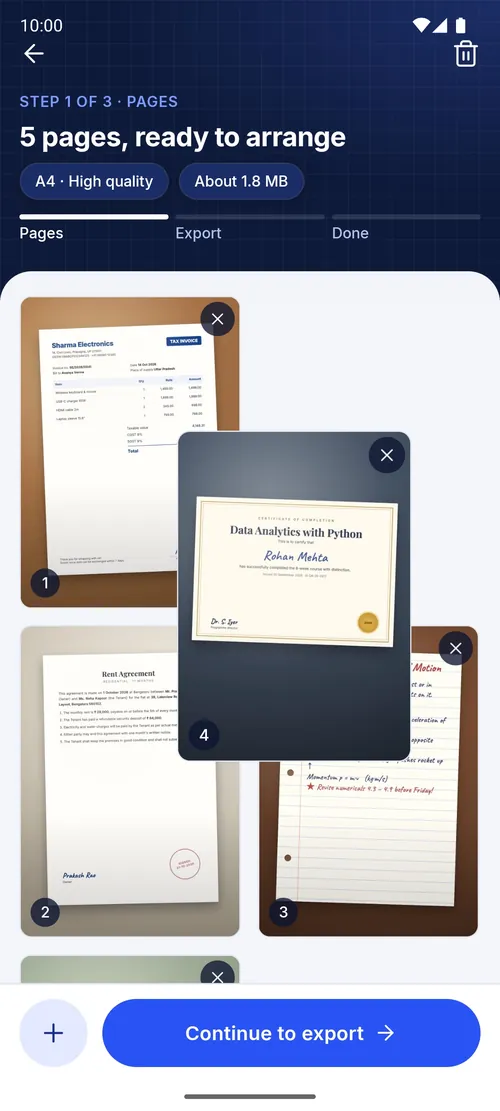
- Tap + to add the next page. You can keep adding pages as long as you like.
- Check each page. Crop it, rotate it, or pick a filter: Enhance, Grey, Black & white or Warm.
- Hold and drag the pages into order. On the last step, Name it and finish, choose the page size and quality, then tap Create PDF.
- Find the file in Downloads › snapPDF or in the Files tab. Share it later, when you are back online.
Tips for a sharp scan
- Light from the side. Daylight next to a window is best. Stand so your own shadow does not fall on the page.
- A dark, plain surface under the paper makes the edges easy to crop.
- Hold still and keep the phone parallel to the page. A slanted phone makes one edge look smaller.
- Enhance for ordinary printed text, Black & white for plain forms, and Grey when a page has stamps or photos you want to keep readable.
- For a smaller file, pick a lower quality on the last step. The size shows next to “About” before you create the PDF.
What works offline, and what needs a connection
| Task | Without internet? |
|---|---|
| Scan with the camera | Yes |
| Choose photos from your gallery | Yes |
| Crop, rotate and use filters | Yes |
| Create the PDF | Yes |
| Merge PDFs | Yes |
| Browse, search and rename your PDFs | Yes |
| Send a PDF with WhatsApp, Gmail or Drive | The PDF is ready, but sending needs a connection |
| Update the app | Needs a connection (Google Play updates, and small over-the-air fixes) |
What stays on your phone
Your photos and PDFs stay on your phone, and SnapPDF does not receive them. When you are online, the app can send usage events and crash reports to improve the app. They are not your photos or PDFs. The privacy policy lists exactly what is collected and how long it is kept.
Questions
Do I need an account?
No. Open SnapPDF and start.
Can I scan without giving camera access?
Yes. Tap Photos and pick pictures you have already taken. They become pages in the same way.
Where are my PDFs saved?
In Downloads › snapPDF on your phone, and they appear in the Files tab.