 SnapPDF
The short answer
- Choose Quality › Small. Each page is shrunk to 1200 px on its longest side and saved at 60% JPEG quality.
- A new phone camera photo comes to about 100 to 150 KB on Small, so one page fits under 200 KB and two usually do not. A photo that is already small, around 1 megapixel, came to 40 to 80 KB.
- The number next to “About” on the last screen is an estimate. Check the real size of the file afterwards.
- SnapPDF cannot aim for an exact size, so a 100 KB limit works only when the photo is already small.
How to do it
- Open SnapPDF and tap Photos, then pick your JPG photos from the gallery. To photograph a paper instead, tap Scan.
- Crop each page so the paper fills the frame. Presets such as A4 help. Less empty table in the picture means more of your 1200 px goes to the text.
- Hold and drag the pages into the order the form asks for.
- On the last step, Name it and finish, open Quality and choose Small.
- Look at the size at the top, next to About. If it is above your limit, remove pages until it fits, or make a separate PDF for each page.
- Tap Create PDF. The file is saved in Downloads › snapPDF, and you can also find it in the Files tab.
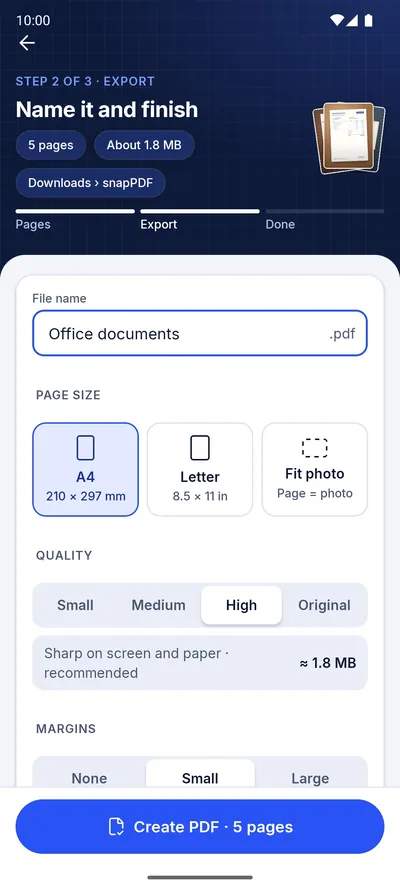
What the four quality settings do
Quality is applied when the PDF is created, so you can change it at the last step without picking your photos again.
| Setting | Longest side of each page | One page, roughly | Good for |
|---|---|---|---|
| Small | 1200 px | 100 to 150 KB for a new camera photo; 40 to 80 KB for a photo that is already small | Upload forms and email |
| Medium | 1800 px | Larger than Small for big photos (simulated), about the same for small ones | Sharing on WhatsApp |
| High (default) | 2400 px | Several times Small for big photos | Reading on screen and printing |
| Original | 3508 px | Larger still | Print quality |
These figures come from our own tests. Measured on a phone: a new camera photo gave a PDF of about 138 KB. Measured on a computer with the app’s resize and quality settings: six document photos of 0.6 to 1.5 megapixels, the size a picture often has after it has been shared or downloaded, gave 38 to 77 KB, and the app’s own size estimate came out higher than the real size for all six. Simulated, not measured: test pages the size of a camera photo gave about 100 to 110 KB, and Medium and High are larger for big photos. SnapPDF only shrinks pictures to fit the setting and never enlarges them, so a small photo stays small. Photos with more detail or grain come out larger. That is why SnapPDF shows its own estimate before it creates the file.
If your limit is 100 KB
A 100 KB limit works only when the photo is already small. All six small photos we tried came to under 80 KB on Small, while a new camera photo came to about 138 KB. SnapPDF has no way to aim for an exact size, so look at the estimate next to About before you create the PDF. If your page is a new camera photo and the limit is 100 KB, you will need another tool that can shrink a file to a target size. For a 200 KB limit, a single page on Small fits either way, and a document with several small pages may fit in one file. Otherwise make one PDF per page, or upload the pages one at a time if the portal allows it.
Will the text still be readable?
At 1200 px on the longest side, normal printed text stays readable on a screen, but very small print can look soft. If a form needs to be read at full size, use Medium. For a new camera photo the file will probably be bigger than 200 KB, so that only helps when the limit is higher or the photo is already small.
Questions
Can I choose an exact size in KB?
No. You choose a quality setting, and SnapPDF shows an estimate before it creates the PDF.
Does SnapPDF upload my photos?
No. PDFs are made on your phone, and SnapPDF does not receive your photos or PDFs. The privacy policy lists what the app does collect.
Does it add a watermark?
No. SnapPDF adds no watermark and shows no ads.