 SnapPDF
The short answer
- In the Files tab, press and hold a PDF, tap the others, then tap Merge selected.
- Or open Tools › Merge PDFs and choose PDFs from Downloads or Drive.
- The order you tap is the page order. Tap a file again to take it out.
- The new PDF opens on the PDF ready screen, ready to share.
Merge PDFs you made in SnapPDF
- Open the Files tab. Press and hold one PDF to start selecting, then tap the others. Select all picks every file.
- Tap Merge selected at the top. The Merge PDFs screen opens with your files.
- Each file shows its place in the new PDF as a number. Tap files to add them or take them out, until the numbers match the order you want.
- Type a name in New PDF name, or keep the suggested one.
- Tap Merge. The button shows how many files it joins, for example “Merge 3 PDFs”. It reads “Choose at least 2 PDFs” until you have picked two.
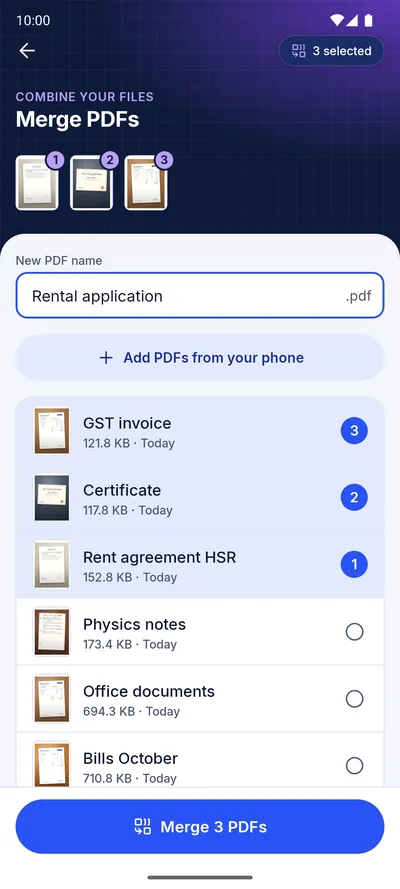
Merge PDFs from your phone or Drive
The files do not have to come from SnapPDF. Open the Tools tab and tap Merge PDFs, then tap Choose PDFs (or Add PDFs from your phone when you already have some). Android’s file picker opens, so you can pick PDFs from Downloads, other apps or Google Drive. Picked files join the order straight away.
Mixing photos and PDFs
Merge works on PDFs. If some of your pages are photos, first turn them into a PDF: tap Photos or Scan, create the PDF, and then merge it with the others. You can also use Add pages › Combine saved PDFs, which appears once you have at least two saved PDFs.
Tips for a clean result
- Check the numbers before you tap Merge. The order cannot be changed after the PDF is created, but you can simply merge again.
- Give the merged file a clear name now. It is saved in Downloads › snapPDF next to your other PDFs.
- Your original files are not changed. Merge makes a new PDF.
Questions
Are my files uploaded to merge them?
No. SnapPDF merges on your phone, so it works offline. If a file is stored only in Google Drive, picking it needs a connection, because Drive has to download it first. The privacy policy explains what SnapPDF collects and why.
Is there a watermark on the merged PDF?
No. SnapPDF adds no watermark and shows no ads.
How do I put the files in a different order?
Tap a file to take it out, then tap the files again in the order you want. The numbers show the new order.